
This post explores several lesser known shell, SSH, and Unix tricks, like:
- Teleporting shell functions over SSH
- SSH Connection Multiplexing
- Creating Socket Connections with pure Bash
Those features, combined, enable SSH integration of promptcmd, where locally defined LLM prompts magically follow you to servers you SSH into, executing exactly like on your local host, and without installing anything or having API secrets on the server.
promptcmd is a CLI tool I created that turns repetitive, frequently used LLM prompts into executable command-line programs with arguments, piping, and Unix-style composability. In a nutshell, if you have a prompt that looks like:
Analyze /etc/config/nginx.conf as an expert sysadmin and security auditor.
Identify misconfigurations, security risks, performance optimizations, and best
practices violations. For each finding, state the setting, the impact, a fix, and
a severity (Critical/Warning/Info).
my tool converts it into a program:
$ analyze-config --help

Usage: analyze-config [OPTIONS] --path <path>

Options:
--path <path>   Path to config. Defaults to stdin
--syntax        Syntax Checks
--sec           Security Checks
--opt           Optimization checks
-h, --help      Print help
If you are "terminal-bound" like myself, you might see convenience in not having to context switch into a browser, copying pasting back and forth into your terminal; not everything needs to be a "chat".
It didn't take long until I realized that the largest convenience is not in executing those prompts in my local shell, but in a remote (SSH) one. See, remote servers are the ones where having LLM assistance would shine in analyzing logs, validating/updating configuration, or coming up with time-saving shell scripts. They also happen to be the place where you most likely won't find an LLM tool installed, you can't (and should not) install one, and are probably forbidden by policy from giving an LLM tool SSH access (for good reasons). So you end up either pulling files into your computer, or copying pasting things back and forth into a chat interface like a savage.
promptcmd brings some civilization into that process: control is never surrendered to the LLM; all context is explicitly determined in the prompt template, and any commands the LLM spits out can only be executed manually by the user. So this should be safe(r). Now, HOW CAN WE MAKE THIS AVAILABLE ON (ANY) REMOTE MACHINE? WITHOUT INSTALLING ANYTHING ON REMOTE MACHINES?
At first, I only regarded this as "sounds good, doesn't work" scenario, and
almost settled with a subpar approach of passing --ssh-dest to prompts:
$ analyze-config --path /etc/nginx/nginx.conf --ssh-dest user@server
Don't get me wrong, this does work and it carries out the job: the file
/etc/nginx/nginx.conf gets read from the server to render the prompt, which
essentially "simulates" executing analyze-config on the server itself.
But this was not enough, e.g., piping in and out would not work the way I want (from/to server). Plus the beauty of the initial idea kept itching; Wouldn't it be cool if I could just "bring my own prompts" into the shell of any server I SSH into?
To make an informed decision on the viability of the above idea, we need to
define sane constraints which any solution must respect, for it to be
worthwhile.
An example for a not-worthwhile approach is
pushing the promptcmd binary and all configurations to the server.
It works, but is neither efficient nor universal (e.g., due to potential arch
mismatch or not having exec permissions on the server).
So these are the constraints I came up with:
- No Binaries: the solution must be cross-architecture and lightweight such that it does not slow down session establishment (noticeably). We cannot assume any writeable directory is mounted with exec permissions.
- Should be Ephemeral: the prompts must be session-bound; once the user exits they're not usable any longer.
- Minimal Server Assumptions: for compatibility with as wide variety of machines as possible (e.g., a router with minimal/stripped-down OS)
- Security: should be safe to use on servers with shared access (assuming root cannot or will not inspect process memory or intercept named pipe communications)
- Seamless UX: ideally indistinguishable from a normal SSH session from a UX perspective
But if we are not putting binaries on the server, then how can we execute custom commands? Seems paradoxical, but not really.
Your usual SSH commands can take a variety of forms:
ssh user@server
ssh -p 2222 user@server
ssh server
ssh alias
ssh -L 8888:localhost:9999 server
ssh -J server1 user@server2
Our first challenge is how to bring "extras" into the remote shell without disrupting those usual normal workflows people are accustomed to. This notion of "bringing stuff over SSH" reminded me of kitty and their ssh kitten that provided a seemingly "magical" thing:
The ssh kitten allows you to login easily to remote hosts, and automatically setup the environment there to be as comfortable as your local shell. You can specify environment variables to set on the remote host and files to copy there, making your remote experience just like your local shell
All you had to do is to "prefix" your normal ssh command with the word kitten:
kitten ssh user@server
I got curious about what that prefix does. Obviously you're not just prepending
a word to the normal ssh executable. This runs a completely different
executable (kitten) with ssh as argument. It eventually invokes your
system's SSH binary, forwarding the arguments along with a specially crafted
"bootstrap payload" that does all the magic.
Shell functions have a very nice property. Once defined, their UX is very much like command line programs:
## executing function_name
function_name arg1 arg2 ... argn
A user invokes shell functions as if they are independent cli programs. This would nicely fulfill our "No Binaries" constraints: we just map the prompts into (remote) shell functions.
And then there is this pretty cool trick that "teleports" locally defined bash functions to servers you ssh into: It goes along the lines of:
### define a function locally
hello() {
    echo "Hello, world, I'm coming from $(uname -n)."
}
Then SSH using:
ssh user@rmthost "$(declare -f hello); hello"
The declare -f is a special bash syntax that serializes the function into a
string, which gets re-evaluated as part of the remote command argument to SSH.
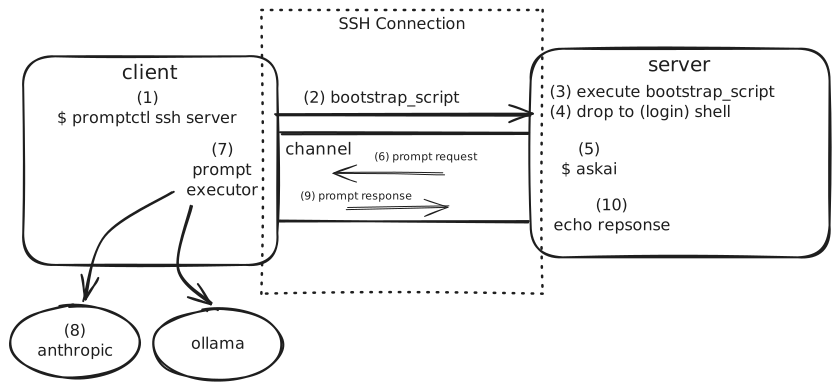
Now the usage scenario in promptcmd is becoming clear: a user establishes the
SSH connection using:
promptctl ssh user@server
In addition to executing your system's ssh binary, promptctl would
additionally carry out the following:
1. Prepare Payload
==================

a. For each prompt, generate a corresponding shell function with the same name as
the prompt
b. Serialize a definition of those functions into a bootstrap payload

2. Teleport:
==================

c. Eval those definitions on the server to declare the functions
d. Drop into a login shell, in a way that ensures the functions are
   accessible in the user's sessions (and sub sessions).
If done correctly, there should not be a noticeable difference between those two commands:
ssh user@server
promptctl ssh user@server
and the user sees and can execute their prompts in the remote shell.
What would the teleported functions do, though? Continue reading.
So far we have an easy, automated way for generating what "look like" executables at the server side, only relying on standard capabilities of the user's shell on the server; shell functions. Now we need those functions to do what they are expected to do when invoked: execute their designated LLM prompts on your local machine, render the output in the remote machine, or what I like to call "Reverse Prompt Forwarding".
The core idea is simple: we need some channel through which the prompt functions on the remote machine can trigger a listener within the promptcmd instance running on localhost. We already have an active channel between local and remote which is the SSH connection itself, so we are going to tunnel through it.
Netcat is a prominent tcp connection tool, reasonable to expect it to be on most servers.
echo "Hello" | nc host:port
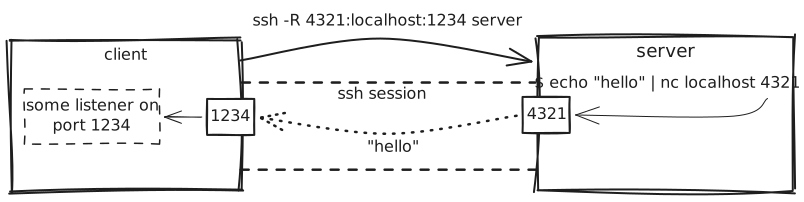
We can make use of SSH's remote port forwarding to redirect connections towards some port on the remote server, onto a listener on the local machine, for example:
nc -l 4321 # on one terminal
ssh -R 1234:localhost:4321 server # on a second terminal
echo Hello | nc localhost 1234 # on the server
The nc command executes on the server and connects to localhost:1234, which
SSH forwards back to port 4321 on the local machine.
At first glance the approach is too good to be true. Indeed, using nc takes care of a couple of subtle aspects that become a hassle when not using nc:
- No polling: The listener blocks until any one connects and sends data.
- Parallel safety: Listener can handle parallel executions, the exchanged data are properly isolated from one another.
Not all grass is green though. Despite its dominance, I have personally found a
couple of instances where netcat is not available. Moreover, remote port forwarding
might be disabled altogether (that's as easy as putting AllowTcpForwarding
no in /etc/ssh/sshd_config).
There is also a security risk: ports forwarded on the remote host are
accessible to other users of the server, necessitating some form of
authentication. We can replace port forwarding with Unix socket forwarding
(using -R /path/to/socket:localhost:port): it works the same way with an
advantage that file permissions prevent other users from accessing the socket
(and disadvantage of requiring a less available software like socat).
This is a neat trick I came across that eliminates the need for netcat or a
dedicated tool for TCP connection, you can just use bash!
Bash has a built-in networking feature using special "pseudo-paths":
/dev/tcp/host/port and /dev/udp/host/port. These aren't real files on disk.
Bash intercepts them internally and opens a network socket instead. You use
them by redirecting to or from these paths, typically with a file descriptor:
exec 3<>/dev/tcp/example.com/80   # open a TCP connection on fd 3
echo -e "GET / HTTP/1.1\r\n" >&3  # write to it
cat <&3                            # read from it
exec 3>&-                          # close it
Still, this only works with ports (no Unix sockets), requires availability of
port forwarding, and the /dev/tcp feature is often unavailable on embedded
devices (like OpenWRT routers) since it's a compile-time optional feature that
may be omitted in some builds.
The port and Unix forwarding methods are nothing but some RPC channel that allows the remote shell functions to trigger actions on the local host and receive responses. If we do not rely on forwarding to be enabled altogether, how can we simulate it?
Named pipes (FIFOs) are special files you can create with mkfifo. Using a named
pipe, two independent processes can communicate by simply reading from and
writing to an agreed-upon path of the pipe.
mkfifo /tmp/mypipe && cat /tmp/mypipe # In Terminal 1
echo "Hello from the writer" > /tmp/mypipe # In Terminal 2
Conceptually, this shares similarities to socket connections, but is purely local,
with no networking overhead, no port management, and no connection setup.
The cat command in Terminal 1 blocks until Terminal 2 writes data. Once data
arrives, it's immediately consumed and displayed, then both commands exit.
So this gives us "No polling" niceness of netcat.
The usage scenario in promptcmd would be:
- The local instance of
promptcmdwaits for data to be written into a remote predictable file path, let's call it the request pipe - A prompt function writes request data into the request pipe, then blocks on another named pipe (response pipe) waiting for response
promptcmdstreams the response into the response pipe- All incoming response data are printed to
stdoutas they come
So that's pretty convenient: with named pipes we do not rely on netcat
availability, on port forwarding being enabled, and do not have to deal with
security risks related to ports on a server with shared access.
We have to deal with something else, though: those named pipes are on the remote
server, while promptcmd runs locally. Having promptcmd block on a
(remote) named pipe would freeze the user's terminal.
Instead of blocking in the user's main session, we can fire another, background
session towards the same server. In background, promptcmd can safely block,
waiting for data to be written by a prompt function into the named pipe, without
interfering with the user's session.
This sounds good, but for that background session, how do we deal with
interactive authentication (e.g., password) and minimize latency? Multiplexing
connections!.
SSH allows you to create a "master" connection using:
ssh -o ControlMaster=yes -o ControlPath=/run/user/1000/pctlssh-2266510-%C user@host
The ControlMaster=yes option enables
connection sharing, and ControlPath specifies where to create the control
socket that makes this connection a "master connection".
Subsequent ssh invocations can be multiplexed over the same connection by referring
to the same control socket:
ssh -S /run/user/1000/pctl-xxx user@host
The nice thing about multiplexed connections is that they're created almost instantaneously; the connection establishment chunk of the protocol like handshake, authentication, and so on do not take place again. This also means that any input required to establish the master connection (e.g., password, or passphrase for ssh key) do not get prompted again, which is pretty convenient.
I owe it to kitty for finding out about this capability, when I got curious about how the hell
kitten sshworks. It actually does pretty cool things over ssh, go check it out. Alsopromptcmd's socket path determination is based on kitty's approach, using a hash of the connection parameters to create unique, collision-free paths for different SSH destinations supporting both linux and Mac OS clients.
promptctl ssh user@server
What happens under the hood:
-
Function Generation: For each configured prompt, promptcmd generates a shell function that will be available in the remote session. These functions know how to communicate with the local instance via named pipes.
-
Master Connection: The system's SSH binary is executed with arguments that establishes a master connection with multiplexing enabled (
ControlMaster=yes), creating a local control socket. This becomes the "main" interactive session where the user works. -
Named Pipes Setup: On the remote server,
promptcmdcreates named pipes in a temporary directory: sendpipe: for sending prompt invocations from remote to local-
recvpipe: for receiving results from local to remote -
Background Monitoring Session: A second SSH session is multiplexed over the same master connection. This background session handles bidirectional communication: it blocks on the
sendpipe, writes responses torecvpipe. -
User Invokes Prompt: In their interactive shell, the user runs a prompt function like
analyze-config --path /etc/nginx/nginx.conf. The function packages its arguments and anySTDIN, writes them to thesendpipe, and blocks on therecvpipe. -
Local Processing: The local
promptcmdreceives the request (which is written to the background session'sSTDOUT), executes the prompt (calling the LLM with the appropriate context), and writes the response to therecvpipe. -
Output Display: The prompt function, which has been blocking on reading the response, finally receives data and echoes it to the user's terminal.
The entire flow is transparent to the user: they simply invoke prompts as if they were local commands, and results appear in their terminal. When the SSH session ends, the master connection closes, the background session terminates, and the named pipes are cleaned up.
Remote prompt forwarding solves the challenge of bringing custom LLM-powered
tools to almost any server without installing binaries or requiring special
permissions. By combining standard Unix and SSH capabilities (shell functions for
execution, named pipes for inter-process communication, and SSH connection
multiplexing for background monitoring), promptcmd provides seamless
integration that feels indistinguishable from running the tools locally.
The result: your prompts travel with you wherever you SSH.
In promptcmd's config file, you can specify the channel to use for all or per
host:
[[ssh]]
channel = "fifo"
## Other channel values:
## "nc" (netcat + port forwarding)
## "bashtcp" (like netcat but uses bash for connections)
## "socat" (socat + Unix Socket forwarding)

## Restrict to host (optional)
host = "server1"
## Restrict to user on the host if specified (optional):
user = "admin"

## Repeat with different configurations across different hosts and users:
[[ssh]]
host = "server2"
channel = "bashtcp"